Robot Monitor Widget UX.UI Design

Improving Work Productivity

Overview

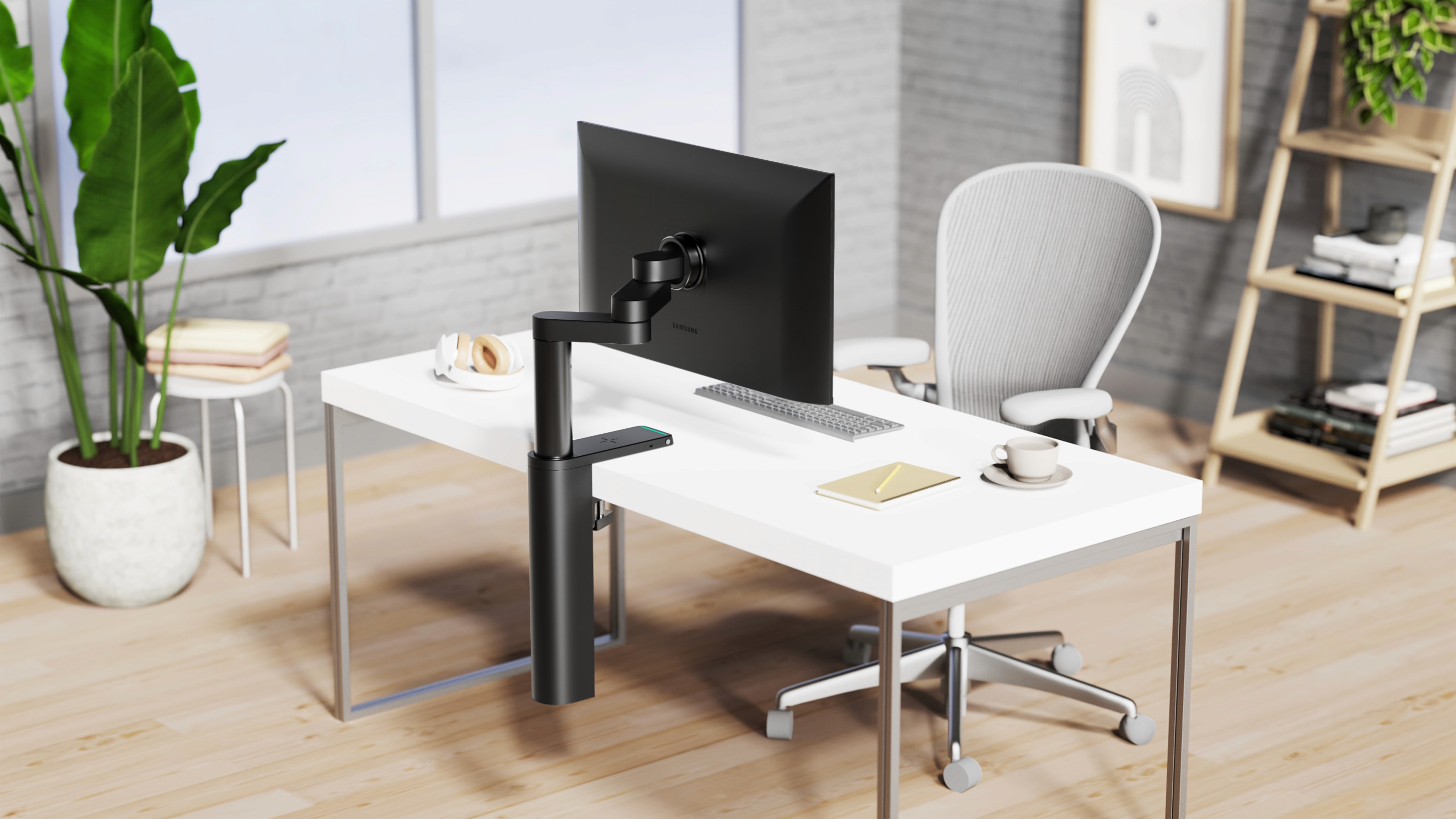
This project explored a new business model for Samsung’s robotics division by integrating a robotic arm with a smart monitor system.


As the primary UX/UI designer, I refined the initial prototype by designing an adaptive widget interface that improves productivity through automated monitor positioning.


The solution enables:

  • Automated monitor positioning

  • Posture feedback system

  • Workspace presets for quick task switching

My Role

UX/UI Designer I Samsung SRA, Think Tank Team
Usability Testing, UI Architecture, Wire Framing, Visual Identity, Prototyping, Interaction Design

Team

Part of an R&D team consisting of 1 UX/UI, 2 ID designers, 1 project manager, and 4 developers.

Duration

3 month,​ Jun-Aug 2022

Problem to Solve

Bad Monitor Setup and Poor Ergonomics Disrupt Workflow

Poor monitor positioning and ergonomics disrupt workflow by causing physical strain and reducing productivity.

How might we improve productivity and ergonomics by automating
monitor positioning without disrupting user control or workflow?

How might we develop an automated system that improves work productivity by optimizing monitor positioning and ergonomics?

Our Solution

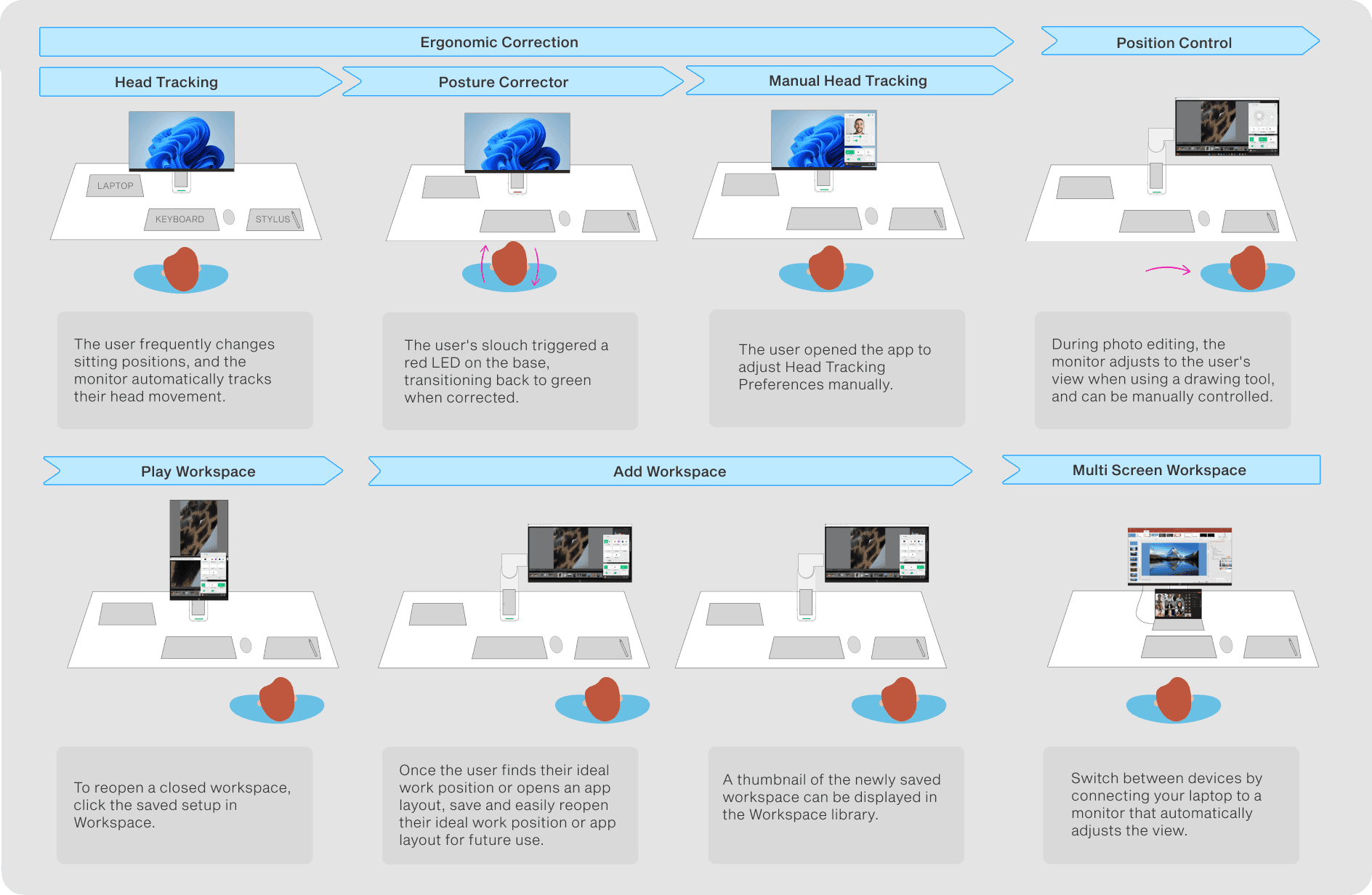
A robotic monitor system that automatically adjusts to a user’s position while supporting posture correction and workspace automation.

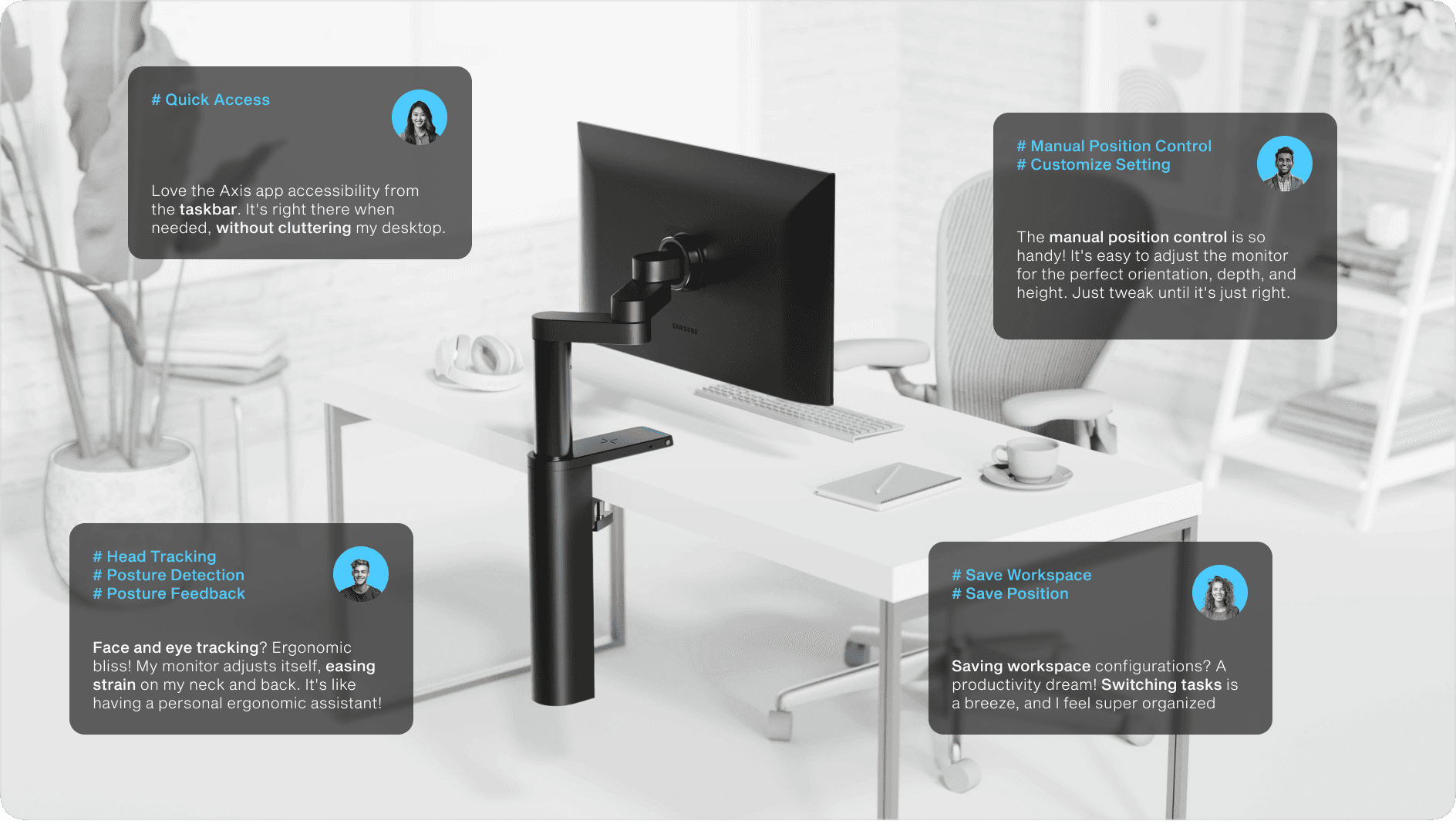
Quick Access

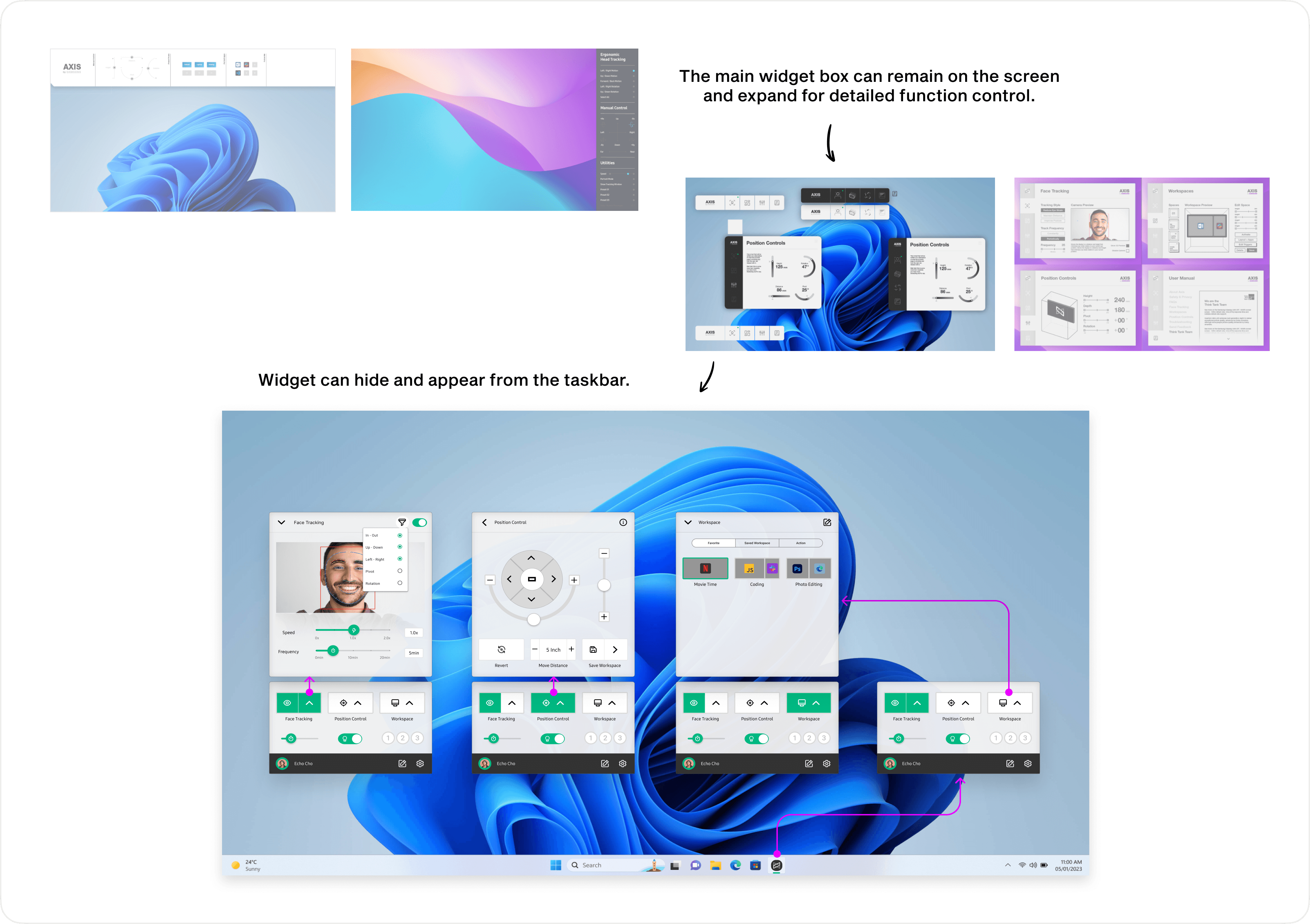
Users can quickly open Axis from the taskbar or desktop, allowing fast control through a minimal widget and deeper customization in an expanded view.

Quick Access

Users can quickly open Axis from the taskbar or desktop, allowing fast control through a minimal widget and deeper customization in an expanded view.

Auto-Ergonomic

Repositioning Setup

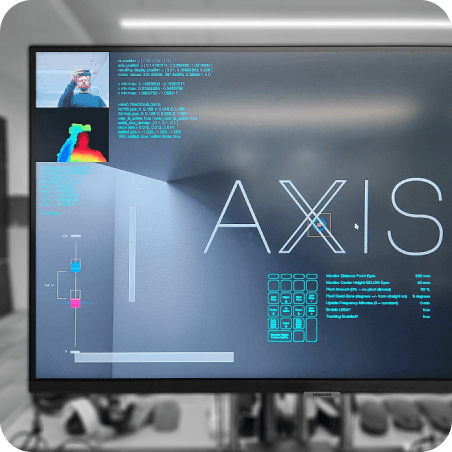
The monitor automatically adjusts to optimal ergonomic positions using face and eye tracking. Users can fine-tune tracking preferences, including sensitivity, distance, and frequency.

Using face and eye tracking, the monitor auto-adjusts for ergonomic positions. Users can manually adjust head tracking preferences, including filter, eye and distance levels, and tracking frequency.

Auto-Ergonomic

Repositioning Setup

Using face and eye tracking, the monitor auto-adjusts for ergonomic positions. Users

can manually adjust head tracking preferences, including filter, eye and distance levels, and tracking frequency.

Manual Position Control

Users can precisely adjust monitor orientation, depth, and height through an intuitive control interface to achieve their preferred setup.

Manual Position Control

Users can precisely adjust monitor orientation, depth, and height through an intuitive control interface to achieve their preferred setup.

Save Positions & App

Layouts as Presets

Users can save preferred monitor positions and reopen applications, quickly returning to a productive work environment.

Save Positions & App

Layouts as Presets

Users can save preferred monitor positions and reopen applications, quickly returning to a productive work environment.

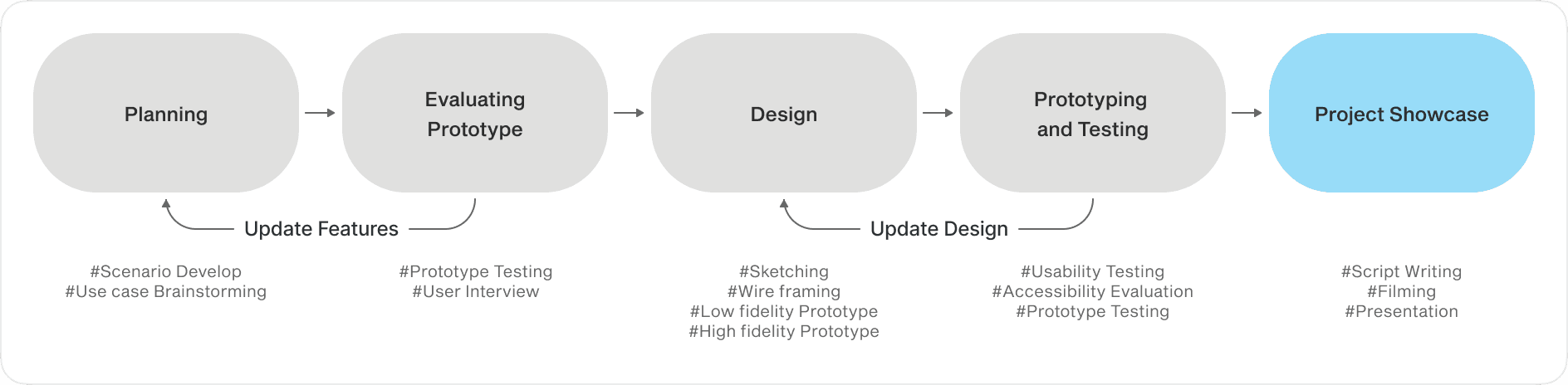
WORK PROCESS

Planning project timline

Bridging prototype with user

Following an initial posture correction prototype, I was brought in as the sole UX/UI designer to improve accessibility and usability.

With an initial prototype in place, the team focused on testing and improving accessibility. I worked directly with the prototype to define key use cases and design the interface, iterating alongside the evolving physical system.

CONTEXTUAL INTERVIEW

Findings from Prototype Testing

Balancing automation and user control

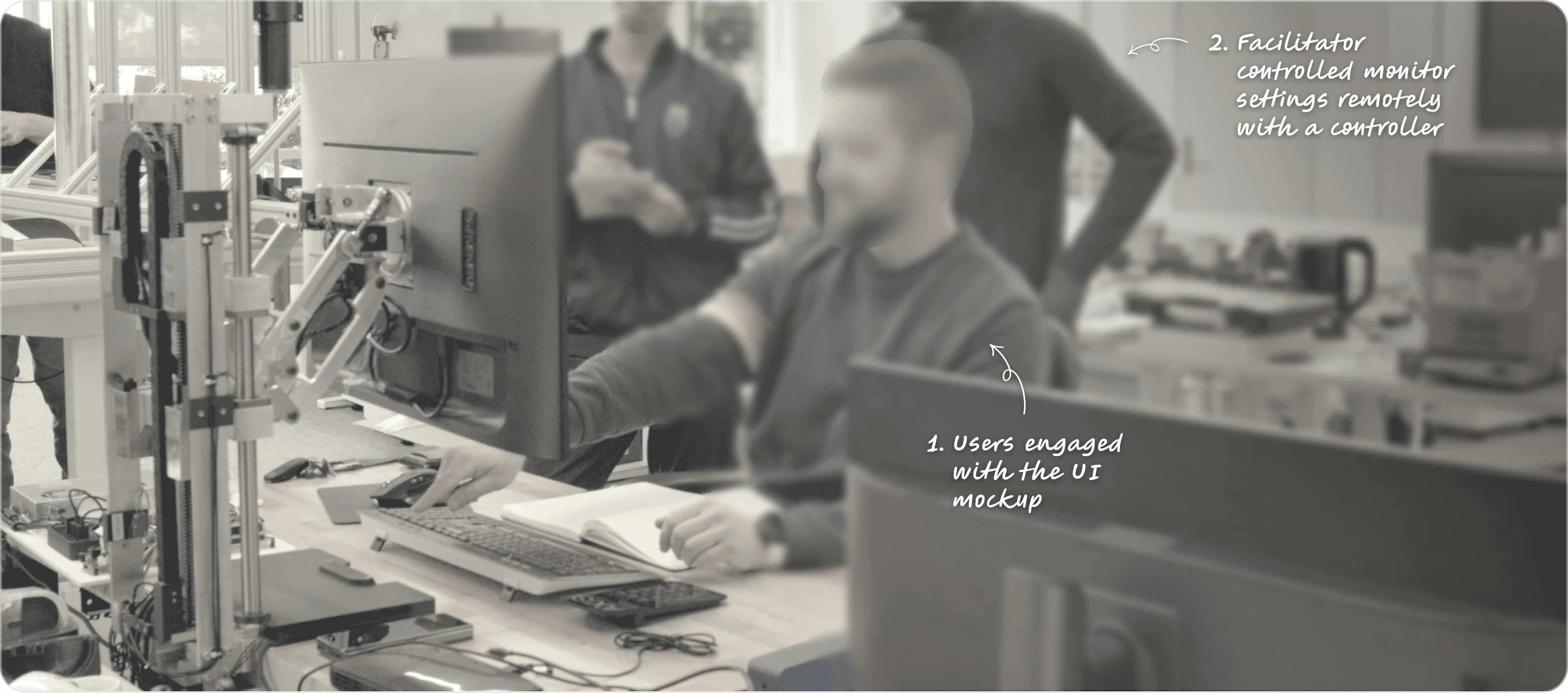
We interviewed 12 internal users as they used the prototype in their daily work. I observed their behavior and asked follow-up questions to identify usability issues. Automation alone wasn’t enough. Users needed easy access to controls and subtle feedback that didn’t interrupt their workflow.

Monitor reposition need varies

Personalized posture assistance

Display clutter with multiple windows

Effortless app access with widget UI

Constant posture feedback is distracting

Allow feedback personalization

Defining design criteria

Based on research findings, I defined key design criteria focused on personalization, quick workspace access, intuitive monitor controls, and flexible face-tracking adjustments.

(Contextual Interview Synthesis)

PROJECT PLANNING

Setting clear project goal

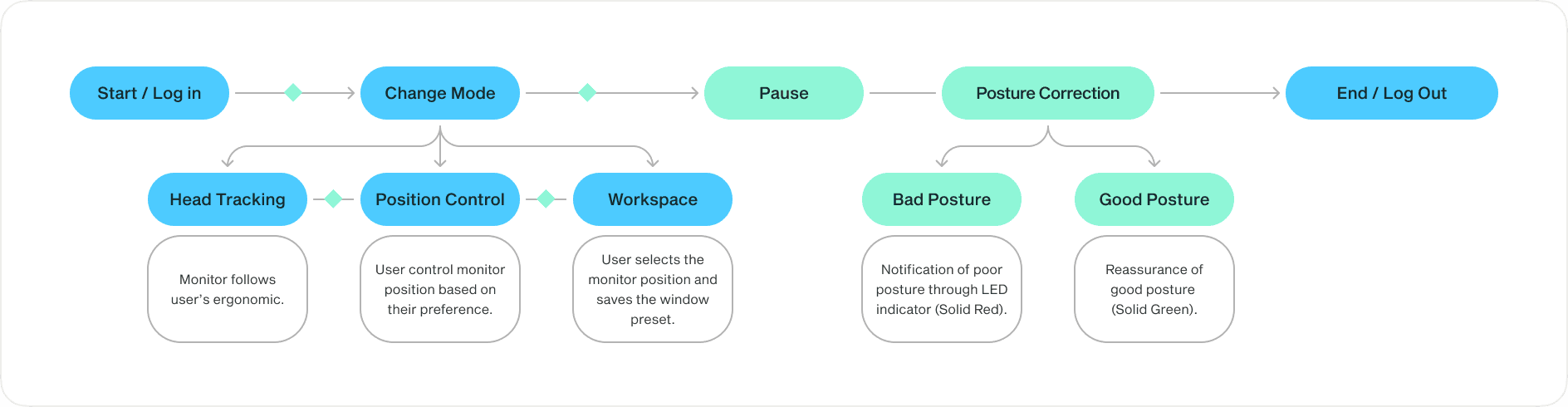
Align Interface and system behavior

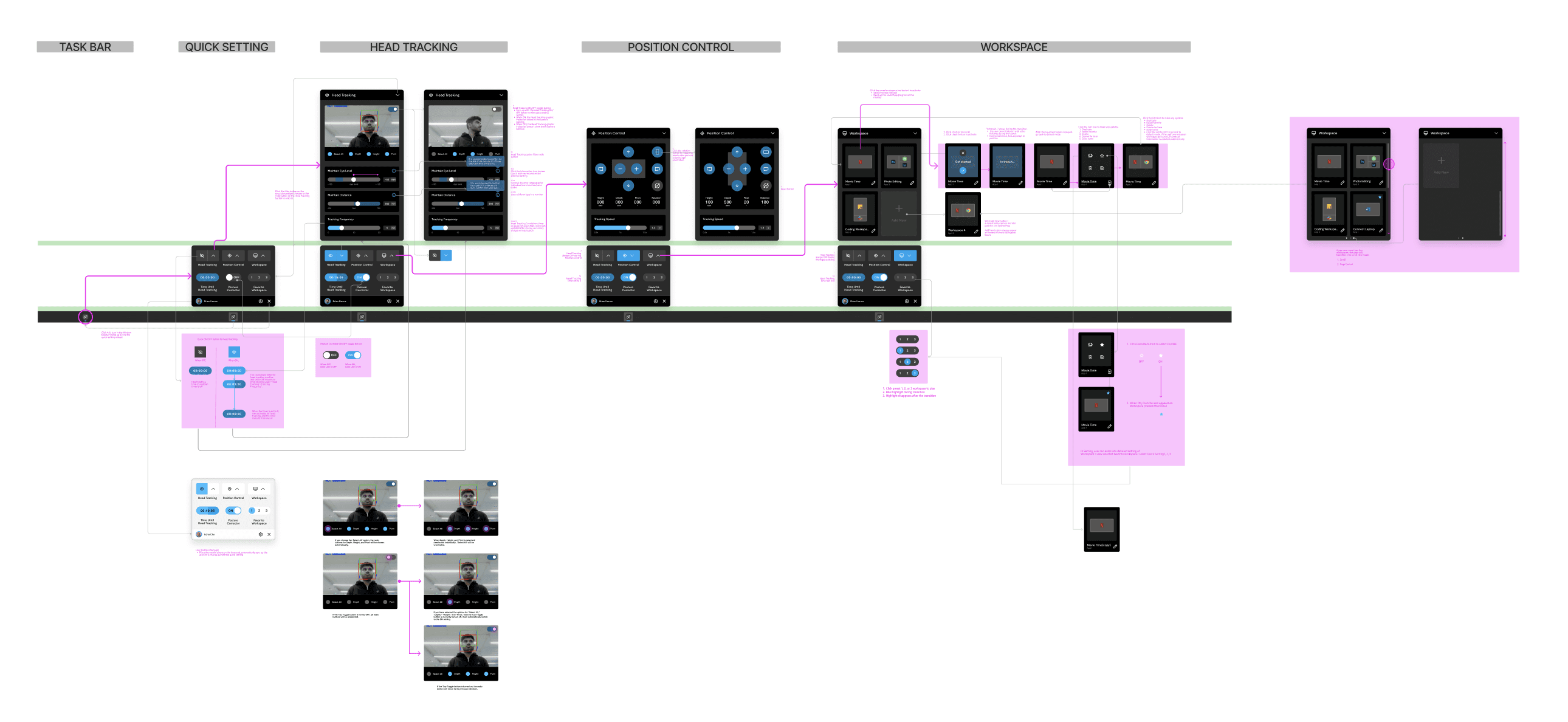
I collaborated closely with engineers to align features and system interactions, focusing on an intuitive interface for managing monitor and workspace settings, with simplified LED feedback integrated into the base.

(User Flow)

Feature alignment through scenario visualization

I created storyboards and journey maps to align on key scenarios, helping the team prioritize simple features that could be delivered within time constraints.

(Scenario Sketch)

SKETCHING

Improving accessibility

Visualizing seamless monitor control

I explored multiple concepts for the application interface, focusing on how it appears and stays accessible without disrupting the screen. The final design introduced a persistent widget that expands for detailed controls, with the option to hide or restore it from the taskbar.

(Concept Sketch)

Defined UI and motion to smoothly toggle between quick settings and detailed controls, with automatic orientation adjustment.

USER TESTING

Testing and iteration

Prioritizing improvements

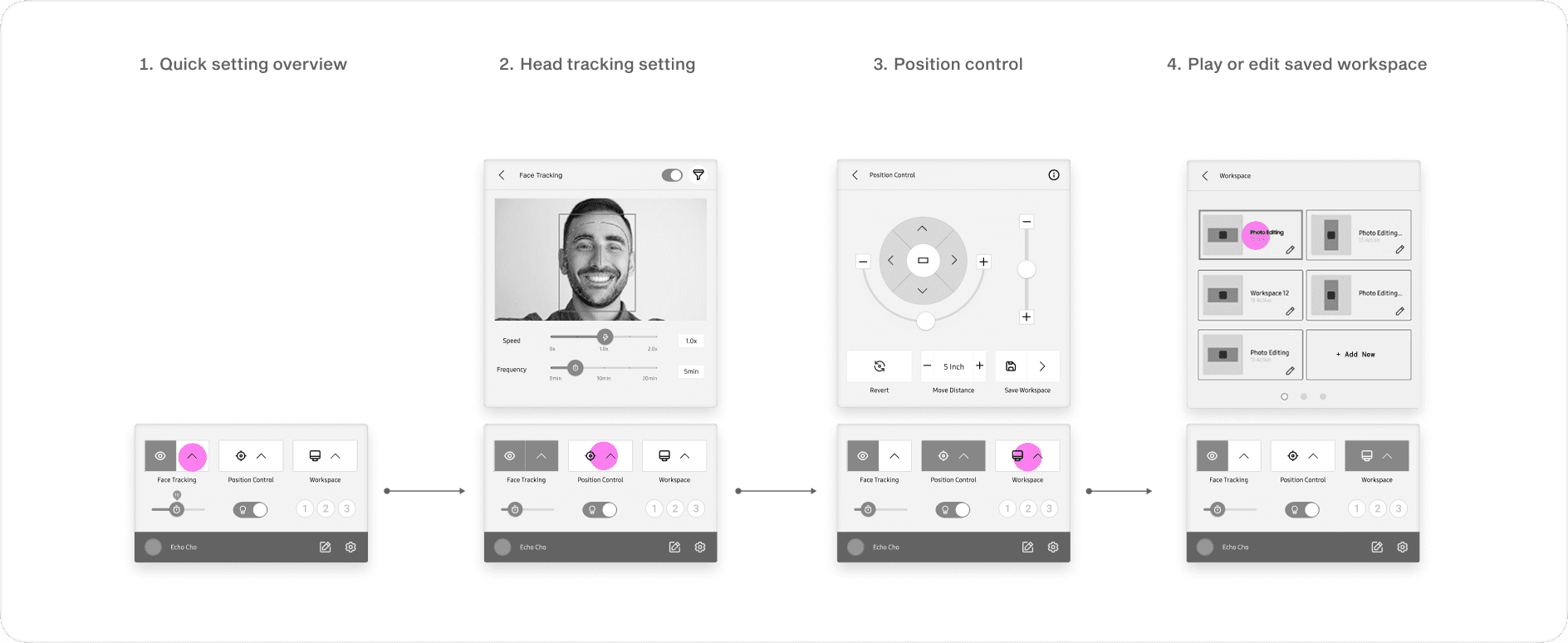
During the mid-fidelity stage, I simplified the experience by reducing hidden features and focusing on core wireframes. Through usability testing, I identified key issues and prioritized improvements based on risk, leading to a focus on refining position control and workspace features.

(Mid Fidelity Prototype & Feedback)

KEY CHALLENGE 1

Position controller

Need Intuitive 3D control design

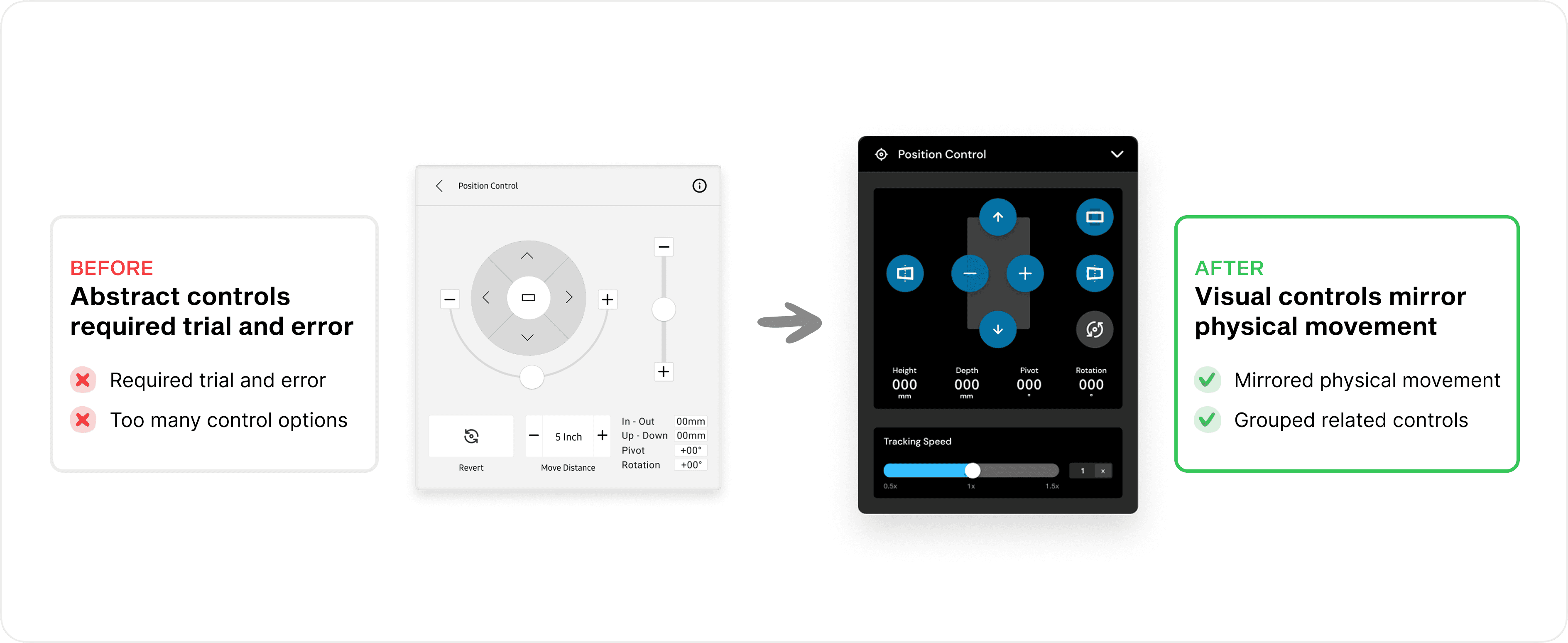
My biggest design challenge was designing an intuitive control system for 3D monitor adjustments. Representing height, depth, pivot, and rotation on a flat interface was difficult.


To address this, I introduced a flat overlay aligned with the monitor view, making interactions more intuitive and reducing the learning curve.

(Before & After)

Balancing speed and spacial clarity

I began by exploring different reference patterns and sharing options with the team. We chose flat controls for their simplicity, feasibility, and lower cognitive load. Still, isometric views added value by improving spatial recognition in monitor previews.

(Controller UI Audit)

Recognizing these trade-offs, I identified an alternative solution that balanced feasibility with improved intuitiveness. I introduced a flat 2D illustration to represent the monitor’s position, combining the clarity of flat controls with stronger spatial understanding.

(Controller Design Explorations)

KEY CHALLENGE 2

Workspace transition

Improving safety and control in workspace transition

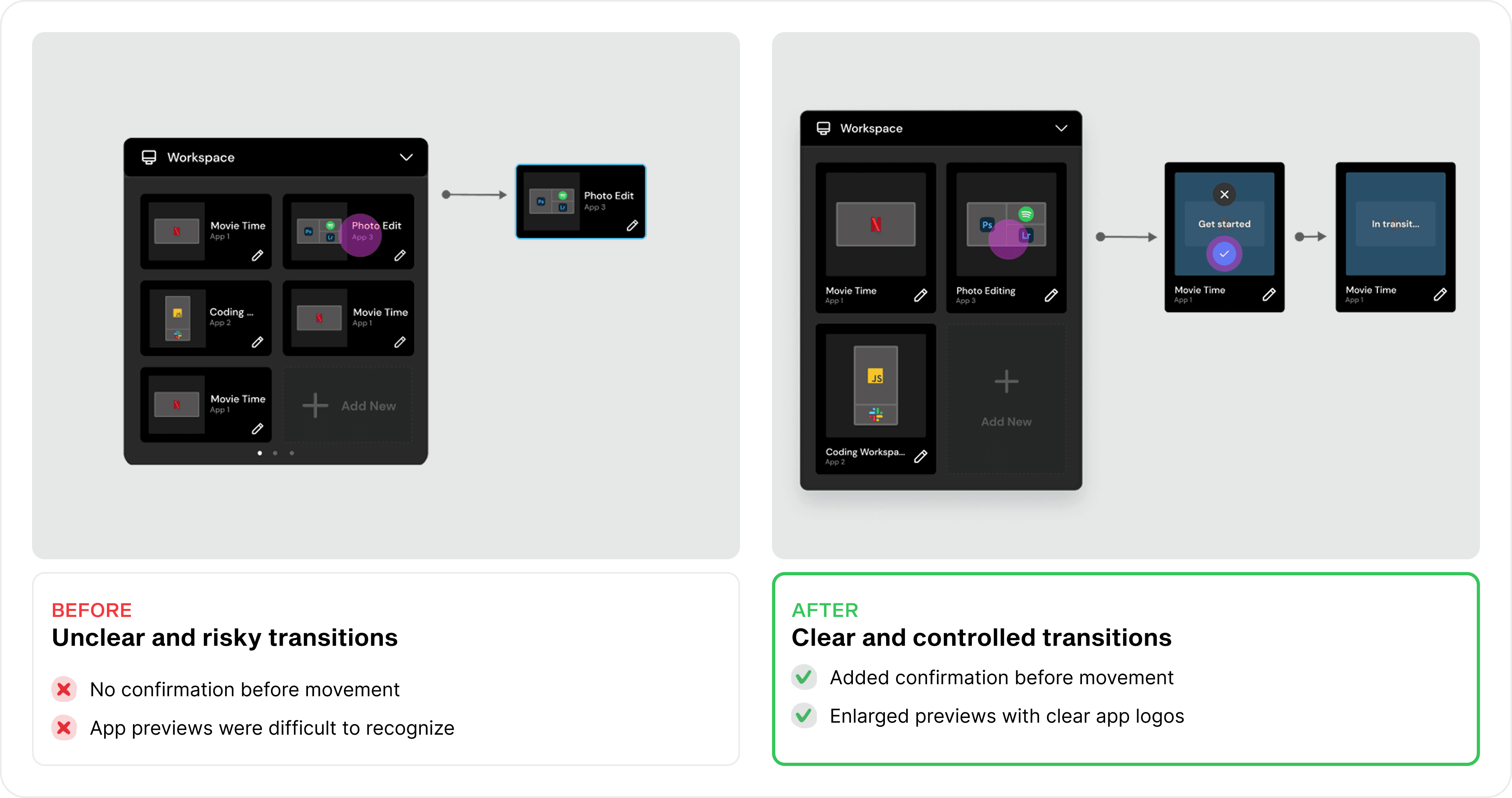
Another challenge was reducing confusion around system-triggered changes and maintaining a sense of user control. Workspace selection triggered automatic adjustments that, without safeguards, could feel abrupt and unexpected.


To address this, I introduced a confirmation step before applying changes, helping users stay aware and giving them the option to cancel.

I also recommended making the interface responsive so that newly added workspaces automatically adjust based on the total number of saved workspaces.

From design to development

During implementation, I worked closely with engineers to ensure designs translated smoothly into production. I adapted to technical constraints and timelines while maintaining visual integrity, using regular check-ins to keep design and development aligned from concept to code.

FINAL DESIGN

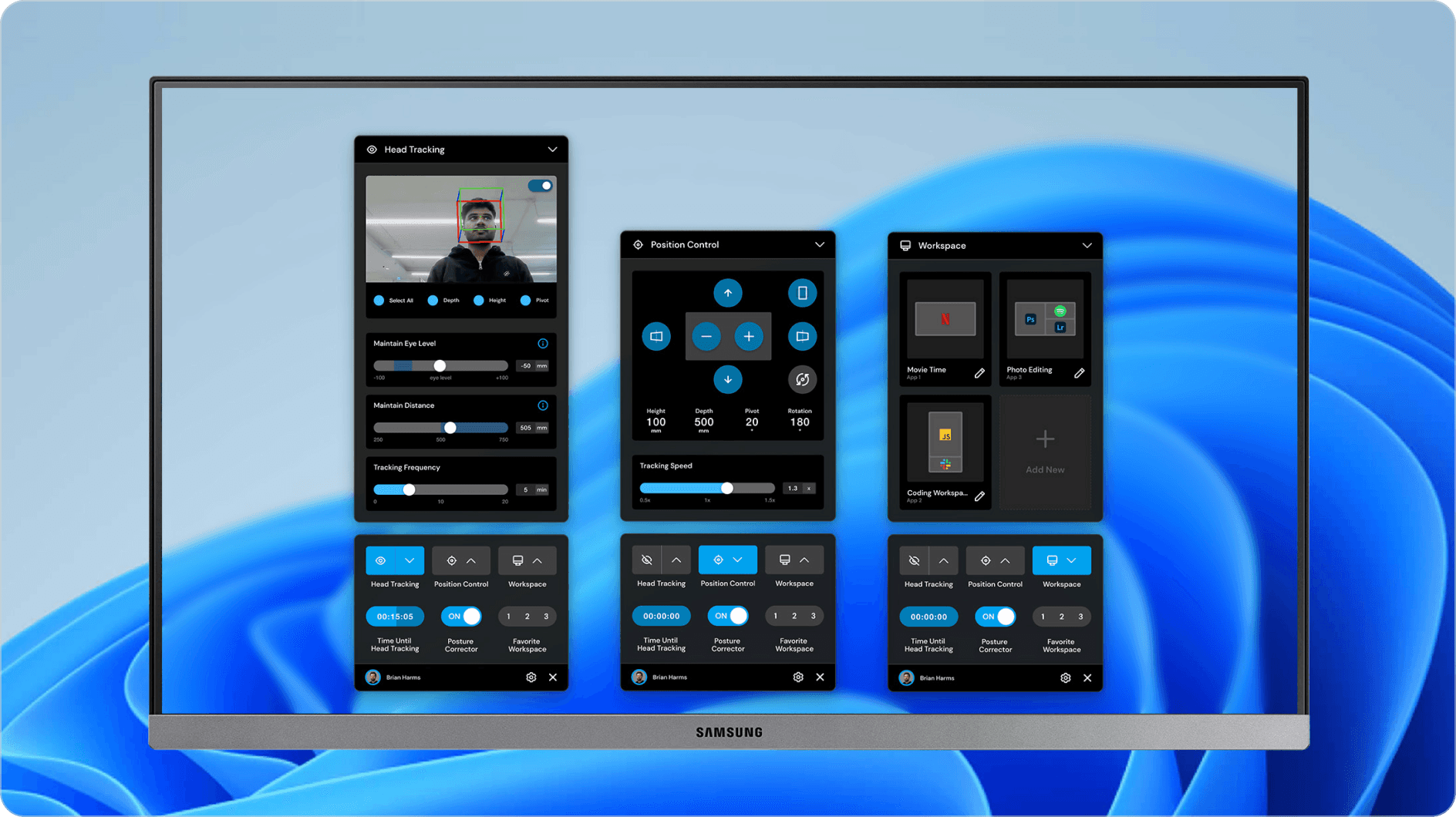
Co-bot to boost your digital workforce

FINAL OUTCOME

Unveiling public feedback

Used in real-world work environments

The final prototype was demonstrated to onsite attendees in tech fair and team visits. We got a great attention to new potential robotic line with integration with current product features

REFLECTION

My take away from the journey

👊 Project challenge

In order to create optimal user interfaces, it was essential to develop the user interface simultaneously with the robotic mechanism. To meet the deadline for software implementation, a widget-style controller was designed to offer a balanced set of options for flexibility. Consistent communication allowed us to quickly align with the project objectives, leading to a successful demonstration.

📝 What I learned

When creating a widget-style controller, it was crucial to limit the number of control options to maintain balance. The design focuses on user intuition by providing clear monitoring of movement directions, without burdening users with unnecessary details. The solution was to strike a balance between availability and simplicity. By limiting the options, we avoid confusion and prioritize clarity, resulting in a better user experience.

👉 What’s my next steps

The project presented to HQ successfully introduced new robotic possibilities. To advance it, I'll focus on developing a posture monitoring and analysis system to improve ergonomic support. Additionally, I'll address overlooked safety protocols concerning monitor movement in desk areas by considering a system to calibrate desktop objects, navigate obstacles, or issue warnings to users before transitions occur seamlessly.